Rules & Notifications
Configure grade thresholds and email notifications per event type.
› New Grade Fires when a new graded assignment appears
› Cash Awards — score ≥ %
› 😊 Smile — score ≥ % (and below cash threshold)
› ❗ Penalty — score below smile threshold or missing
› Grade Changed Fires when a previously-posted grade is updated
Triggered when the score or max score of an existing assignment changes — e.g. after a retake or grade correction.
› New Missing Assignment Fires when an assignment is newly marked missing
Triggered when an assignment is first marked missing in ParentVUE, or when a new assignment arrives already flagged as missing.
› Missing Assignment Cleared Fires when a missing assignment is submitted or cleared
Triggered when an assignment previously marked missing is no longer missing — indicating it was submitted or manually resolved.
› Due Today Reminder Fires daily when there's unchecked homework due today
Sends a daily email listing all assignments due today that haven't been checked off on the student's page.
Use {{ hw_due_today }} in the template.
Display Options
Display Settings
Default Columns
Choose which columns are visible by default per student. Award column syncs automatically with each student's incentive setting.
Grade Colors
Define color bands by minimum percentage. Applies globally to all scores and subject cards.
Credentials
ParentVUE Credentials
Stored encrypted at rest. Only update if you changed your ParentVUE password.
Child Logins
Each child can log in to GottView with their school email to view their own grades.
Loading…
Family Access
Add emails for family members (co-parent, grandparent, etc.) who can log in with the same ParentVUE password as your primary account.
Loading…
Classroom Feed
How to set up Google Classroom notifications
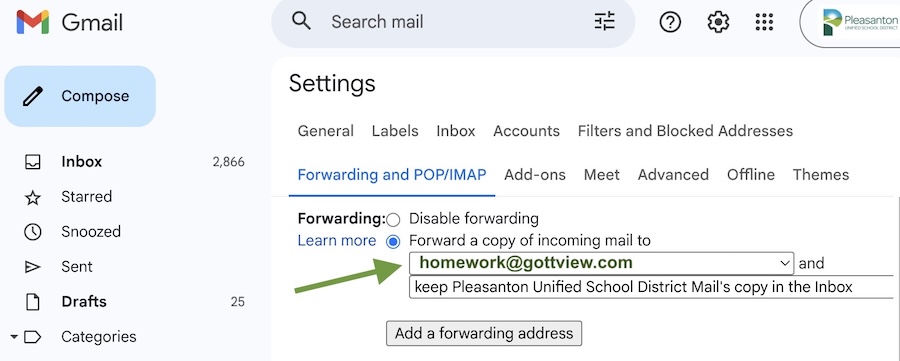
GottView can display your child's Google Classroom activity — new assignments, due dates, and teacher comments — directly on the dashboard. To enable this, the student's school Gmail account needs to forward a copy of incoming emails to [email protected]. GottView never stores login credentials for the student's account; it only reads the forwarded messages.
- Log into the student's school Gmail account (e.g. [email protected]).
-
Open Gmail Settings → Forwarding and POP/IMAP, or click the direct link:
mail.google.com → Settings → Forwarding - Click Add a forwarding address and enter [email protected].
- Google will send a confirmation code to that address — GottView receives it automatically within a minute. Refresh this page and the feed will start populating.
Loading…